Managing Properties
Edit property details, add photos, and understand property types.
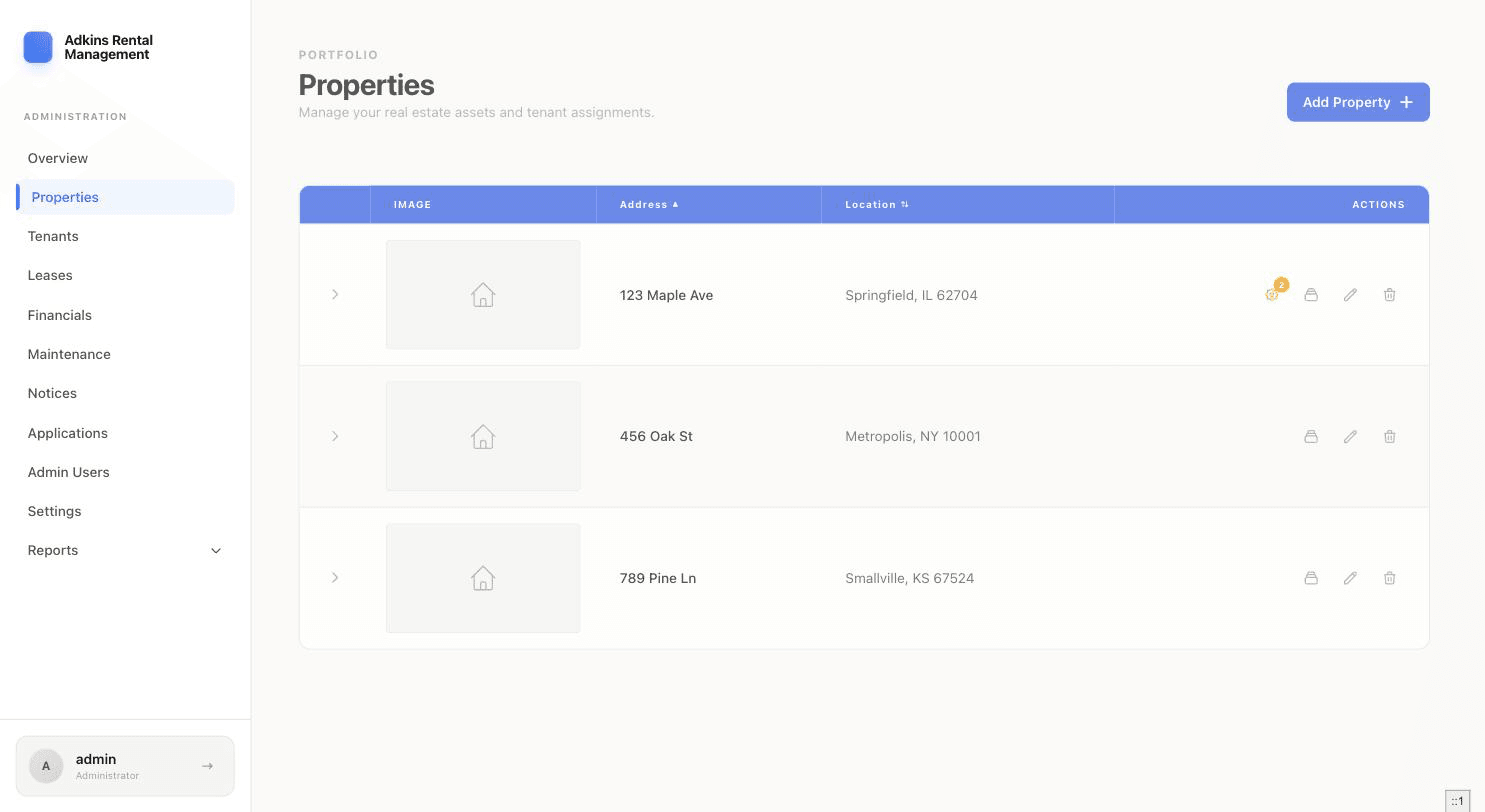
The Properties list is your portfolio at a glance — sortable by Address or Location, with a row per property.
Reading a row
- The chevron on the left expands the row in place — for unit-based properties it shows a sub-table of every unit; for single-unit property types it shows an occupied/vacant summary.
- A small wrench badge with a number appears in the Actions column only when that property has open maintenance requests — click it to jump straight to a filtered Maintenance view.
- The building icon opens "Manage Units" (the Property Details page — see Managing Units).
- The pencil opens Edit Property; the trash icon opens a delete confirmation.
Editing a property
The edit form is the same as the Add Property form: photo, property type, address, city/state/zip, and description. Changing the property type resets the Beds/Baths/Sq Ft fields, since which fields apply depends on the type.
Deleting a property
Heads up
Deleting a property is permanent. If it has units, RentSystems warns you explicitly that it will also permanently delete every unit and all associated leases, maintenance requests, and notices tied to them. There's no undo.
More in Properties & Units