Customizing Email Templates
Edit the subject and body of every automated email your tenants receive.
Every automated email — payment receipts, maintenance updates, application decisions, and more — has an editable template, in the Email Templates card near the bottom of Settings.
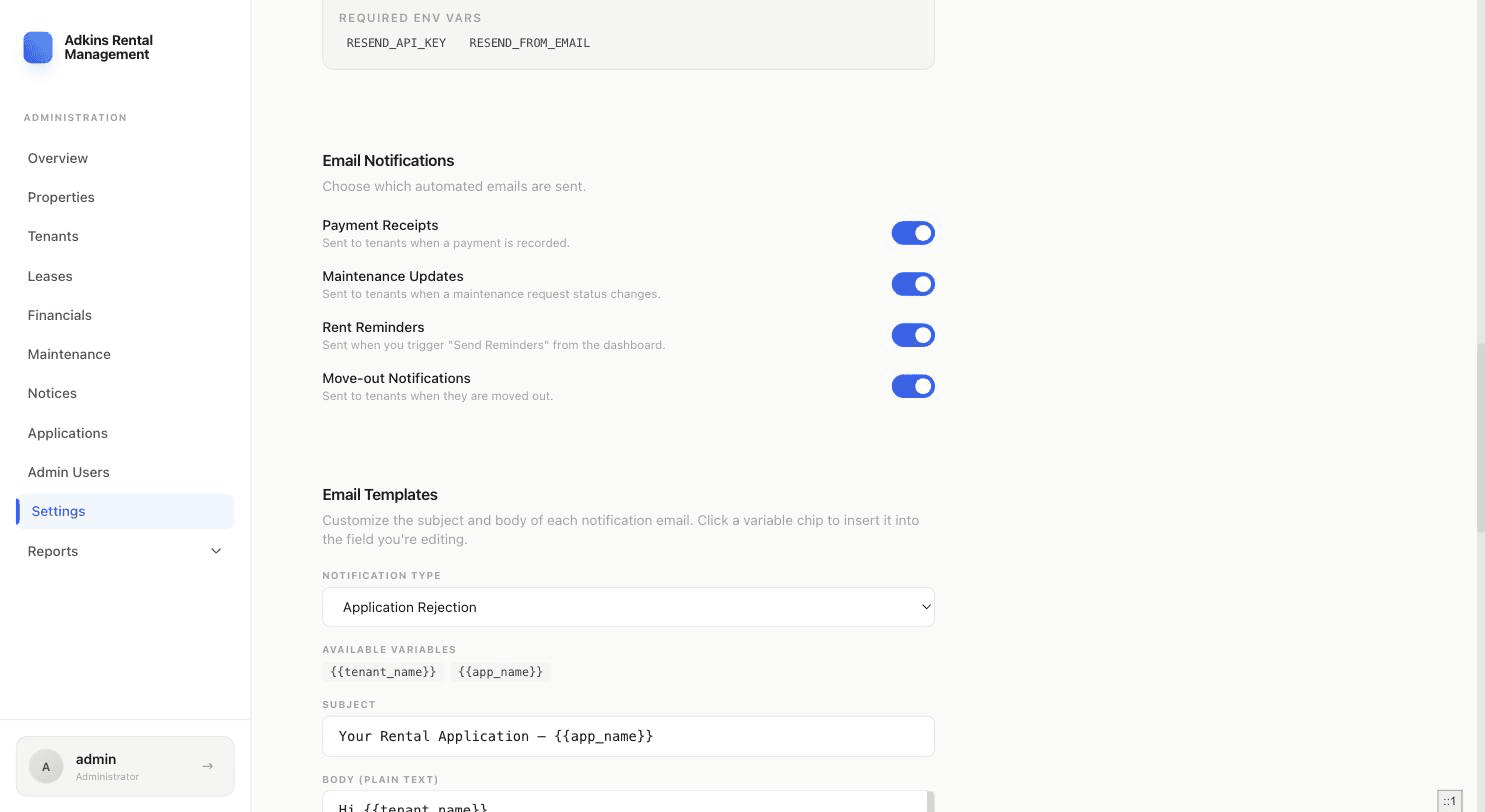
- 1Pick a notification typeThe dropdown lists every template; ones you've already customized are flagged "(Customized)".
- 2Edit the subject and bodyBoth a plain-text body and an HTML body are editable independently, since some email clients only render one.
- 3Insert variablesClick a variable chip (like {{tenant_name}}) to insert it at the cursor position in whichever field currently has focus.
- 4Preview before savingClick Preview to render the template with sample data — you'll see the actual subject line and a rendered HTML preview.
- 5Save the templateEach template saves independently with its own Save Template button — it's separate from the main Save Settings button for the rest of the page.
Tip
Made a mess of one? A customized template shows a Revert to Default option that deletes your override and goes back to the built-in wording.