Your Dashboard at a Glance
What the stat cards, recent activity feed, and quick actions on your Overview page actually do.
Your dashboard (Overview in the sidebar) is the first thing you see after signing in. It's built to answer one question at a glance: "does anything need my attention today?"
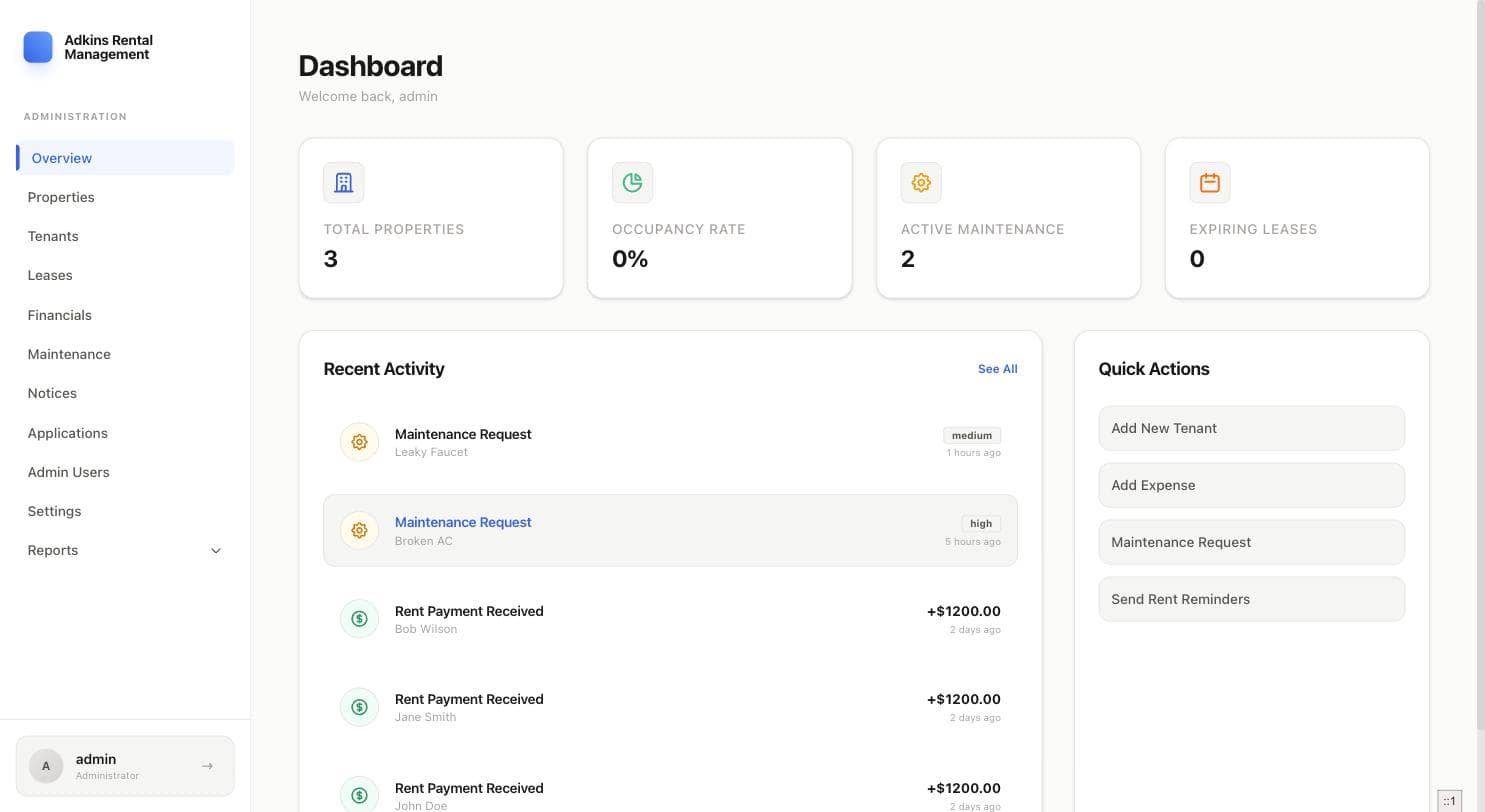
Stat cards
Each card is clickable and jumps straight to the relevant page:
- Total Properties — links to Properties.
- Occupancy Rate — the percentage of your units currently occupied; links to Properties with all rows expanded.
- Active Maintenance — count of open (non-completed) requests; links to Maintenance.
- Expiring Leases — leases ending within 120 days; links to a pre-filtered Leases view. If any are within 3 months, the card pulses red with a warning badge.
- Move-Out Needed — only appears once a lease has actually expired and still needs to be closed out; links to Leases.
Overdue communications banner
If you've logged a communication-log entry (see Tenant Profiles) with a due date that's passed and hasn't been dismissed, it shows as a red banner at the top of the dashboard. Dismiss it directly from the banner once you've followed up.
Recent Activity
The last five events across your account — payments, maintenance requests, lease signings — each clickable to jump to the source. Click "See All" for the full Activity Log.
Quick Actions
- Add New Tenant — opens the Tenants page with the Add Tenant modal already open.
- Add Expense — opens Financials on the Expenses tab with the Add Expense modal open.
- Maintenance Request — opens Maintenance with the New Request modal open.
- Send Rent Reminders — immediately sends a rent-due reminder to every tenant with a balance. A toast confirms how many were sent.
Tip
Every stat card and quick action is a shortcut — nothing here is exclusive to the dashboard. If a card ever looks off, the underlying page it links to always has the full detail.